Add an Assemble Activity to a Training Module
Overview
Add an Assemble activity when a training module needs a live online session, meeting, class, mentoring appointment, or virtual presentation.
Use this guide to place an Assemble activity in the correct training module section and configure the basic session details.
Permissions / Access
This action is typically performed by people who can manage training module content.
- Company Manager
- Department Manager
Navigation Path
Admin Dashboard -> Training Modules -> [Training Module] -> Edit Mode -> [Section] -> Add an activity or resource -> Assemble
Steps
- Navigate to the training module where the Assemble activity should be added.
- Select the edit mode control.
- Navigate to the section where the live session should appear.
- Select the option to add an activity or resource.
- Select Assemble from the activity list.
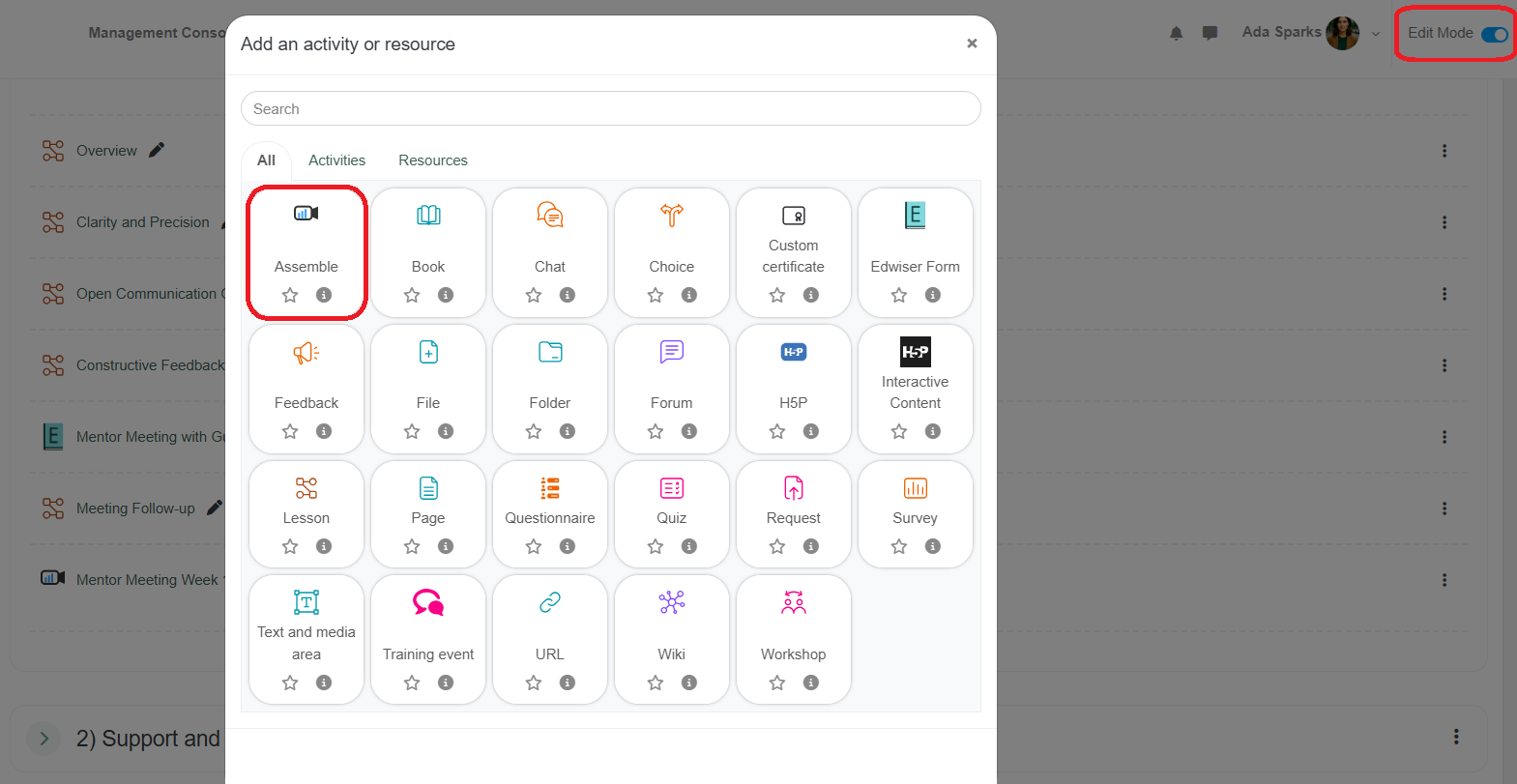
- Enter the activity name.
- Enter a description if users need instructions before joining the session.
- Select the room settings for the session.
- Select the session timing if users should only join during a specific window.
- Review availability, access, and completion settings.
- Select the save option to add the Assemble activity to the training module.
Go to Assemble Settings to learn more about the settings.
Result
The Assemble activity appears in the selected training module section.
Users with access to the training module can open the activity and join the live session when it is available.
Notes / Tips
- Use a name that makes the purpose of the session obvious.
- Add preparation instructions if users need materials before joining.
- Check the availability settings if users should only join during a specific time window.
- Review moderator settings if users should wait until a facilitator starts the session.
- Review recording settings before saving if the session should be available later.
- Use completion settings when the Assemble activity is part of a required training path.
Troubleshooting
Common issue: Users cannot see the Assemble activity.
Solution: Confirm the activity is visible and the users have access to the training module.
Common issue: Users cannot join the session.
Solution: Confirm the session timing, availability settings, and moderator settings.
Common issue: The activity appears in the wrong section.
Solution: Move the activity to the correct training module section while edit mode is enabled.