Recordings
Overview
Use the Recordings section of an Assemble activity to review completed sessions and share playback links.
The Playback column may provide two recording URLs. Presentation opens web-based presentation playback, and Video opens video playback. Both URLs can be shared with other people. Only the Video playback can be downloaded.
Permissions / Access
Only Company Managers can view recordings in the Assemble activity. Department Managers, Users, and users assigned the Moderator role cannot see recordings in the Recordings section.
- Company Managers
Navigation Path
Training Module -> Assemble Activity -> Recordings
Steps
Find a recording
- Navigate to the training module that contains the Assemble activity.
- Select the Assemble activity.
- Navigate to Recordings.
- Locate the recording by reviewing its name, preview, date, or duration.
View presentation playback
- Locate the recording in the Recordings table.
- Select the Presentation URL in the Playback column.
- Review the presentation playback in the page that opens.
Presentation playback is a web-based view that can be shared by URL. The presentation file cannot be downloaded.
View video playback
- Locate the recording in the Recordings table.
- Select the Video URL in the Playback column.
- Select the play control in the video player.
- Use the player controls to pause, resume, or move through the recording.
Video playback is a web-based view that can be shared by URL.
Download the video
- Open the recording with the Video URL.
- Right-click directly on the video player.
- Select Save Video As or the browser's equivalent download option.
- Select the folder where the video should be saved.
- Confirm the download.
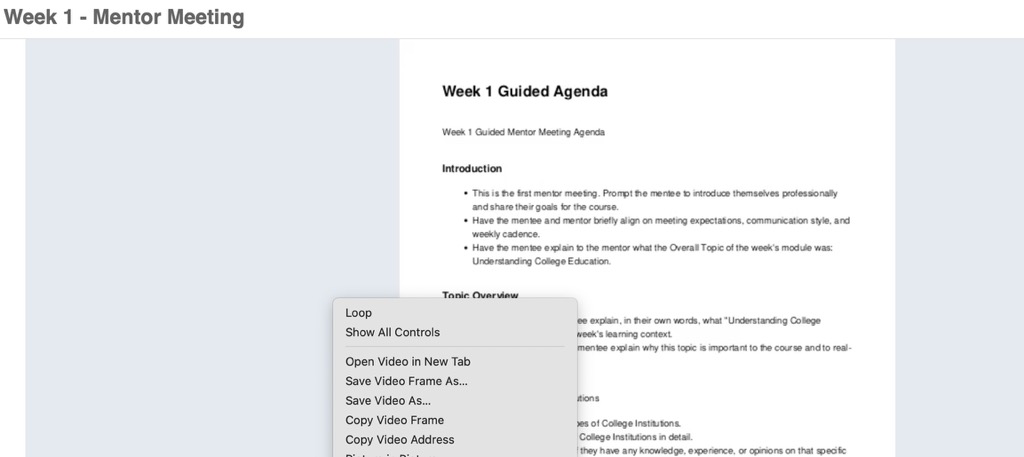
This right-click action is the way to download an Assemble recording. Downloading is available for Video playback only; Presentation playback can be viewed and shared but cannot be downloaded.
The wording of the download option may vary by browser.
Result
- The selected presentation or video recording opens for playback.
- A downloaded video is saved to the selected folder on your device.
Notes / Tips
- Recordings may take time to process after a session ends.
- Use the Presentation link when you need the presentation-focused playback experience. The URL can be shared, but the presentation cannot be downloaded.
- Use the Video link when you need standard video playback or want to download the recording.
- Confirm that you have permission to download or redistribute a recording before sharing it.
- Rename a downloaded file when a more descriptive filename will make it easier to identify later.
Troubleshooting
Common issue: The recording is not listed.
Solution: Confirm that the session was recorded, wait for processing to finish, and refresh the Assemble activity page.
Common issue: A playback link does not open.
Solution: Allow the browser to open the playback page, then refresh the Assemble activity and try the link again.
Common issue: The browser does not display a download option.
Solution: Confirm that you opened the Video link, right-click directly on the video player, and review the browser-specific video options.
Common issue: The video does not play smoothly.
Solution: Confirm the internet connection, pause the recording briefly to allow it to load, and close unnecessary browser tabs.