Scheduling and Sharing
Overview
Use the Assemble activity page to schedule a meeting, send calendar invitations, or copy the meeting information for sharing outside the invitation list.
This guide also explains how to review the session status and join or end an active session.
Permissions / Access
Scheduling and session management options are available to people who can manage the Assemble activity and to users assigned the Moderator role for the live session. A Moderator can schedule the meeting; a user without that role can still copy and share the meeting information.
- Users
- Department Managers
- Company Managers
Users may receive shared meeting information or an invitation when guest access is allowed.
Navigation Path
Training Module -> Assemble Activity
Steps
Review the meeting page
- Navigate to the training module that contains the Assemble activity.
- Select the Assemble activity.
- Review Calendar Invite Information to confirm whether a meeting is already scheduled.
- Review the session status, moderator count, viewer count, and presentation file when those details are displayed.
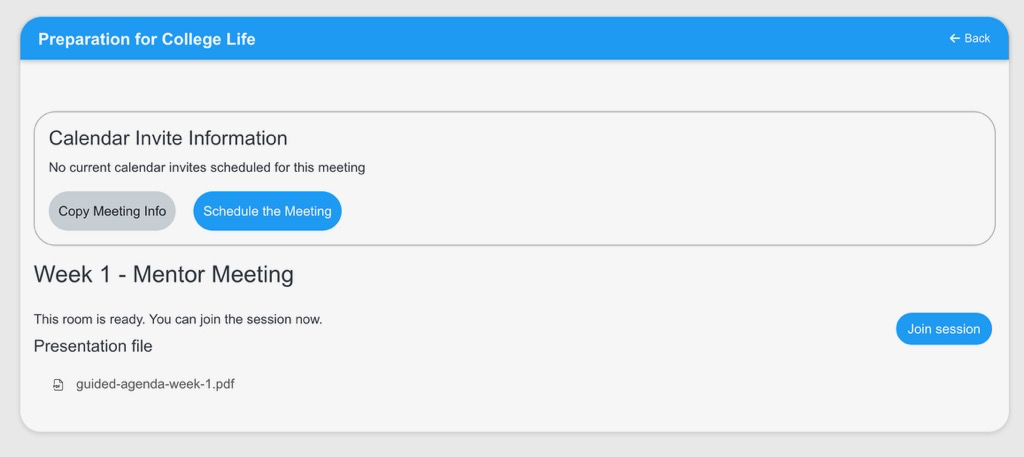
The Copy Meeting Info option lets you share the meeting URL and related information. The Schedule the Meeting option opens the meeting scheduler.
Confirm moderator access before scheduling
Only a user assigned the Moderator role can schedule the meeting. Users without the Moderator role can still select Copy Meeting Info and share the meeting URL, but they cannot schedule the meeting.
- Open the Assemble activity settings.
- Review the participant role assignments.
- Confirm that the user who needs to schedule the meeting is assigned the Moderator role.

For the complete role and access configuration, see Assemble Settings.
Confirm guest access before sharing
Guest access must be enabled in the Assemble activity settings before people outside the training module registration can use a shared meeting URL.
- Open the Assemble activity settings.
- Review the guest access setting.
- Confirm that guest access is enabled when the meeting should be available to guests.
- Guest access will create a unique URL that must be shared with the guests. They also get a password they must use to be able to join.
For more information about guest access and related activity controls, see Assemble Settings.
Copy and share the meeting information
- Select Copy Meeting Info.
- Open the email, message, or other location where the meeting details should be shared.
- Paste the copied meeting information.
- Send the information to the intended participants.
If Quick Send Guest Invites is available, select it to enter and send invitations to guest participants.
Schedule the meeting
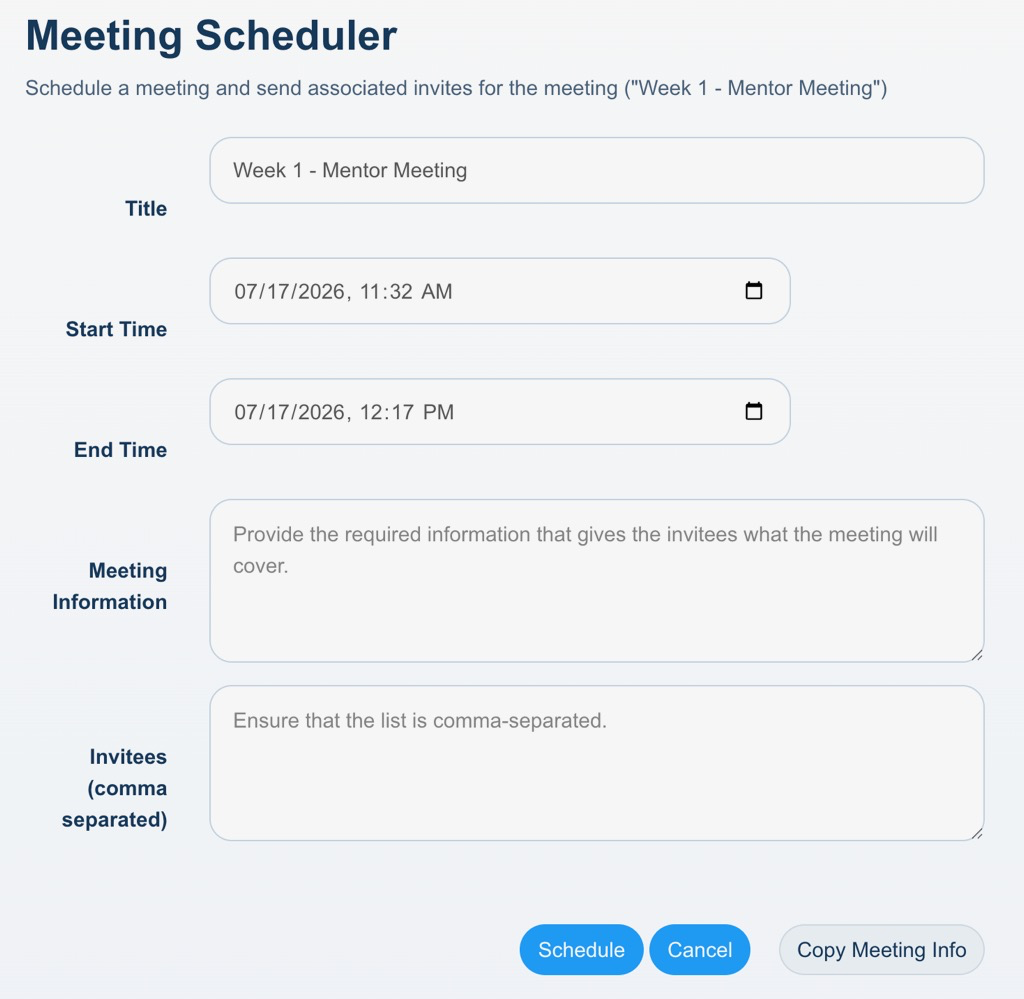
- Select Schedule the Meeting.
- Confirm or update the meeting Title.
- Select the Start Time field.
- Select the meeting start date and time.
- Select the End Time field.
- Select the meeting end date and time.
- Enter a summary or agenda in Meeting Information.
- Enter the invitee email addresses in Invitees.
- Separate multiple email addresses with commas.
- Review the scheduling information.
- Select Schedule Meeting to schedule the meeting and send the invitations.
Review or manage the scheduled session
- Return to the Assemble activity page.
- Review Calendar Invite Information for the scheduled meeting details.
- Select Join Session when the room is ready.
- Select End Session only when the active session should end for everyone.
Result
- The meeting is scheduled for the selected start and end times.
- The listed invitees receive the meeting information.
- The scheduled meeting appears in Calendar Invite Information.
- Copied meeting details can be shared through another communication method.
Notes / Tips
- Confirm the time zone before scheduling the meeting.
- Add a clear agenda in Meeting Information so invitees know what the session will cover.
- Verify every invitee email address before sending invitations.
- Use commas between invitee email addresses.
- Use Copy Meeting Info when the meeting details need to be shared in an existing email or message.
- Select Join Session to enter the room without ending access for other participants.
Troubleshooting
Common issue: An invitee does not receive the meeting invitation.
Solution: Confirm the email address, review the comma-separated invitee list, and send the meeting information with Copy Meeting Info if needed.
Common issue: The meeting time is incorrect.
Solution: Review the start time, end time, and time zone, then update the schedule before the meeting begins.
Common issue: Join Session is not available.
Solution: Confirm that the room is ready and review the Assemble activity availability and session timing.
Common issue: The session ended for every participant.
Solution: Use the leave control inside the meeting room when only you need to exit. Use End Session only when the meeting should close for everyone.