Assign Department Users and Managers
Overview
Use this page to assign users to a department and set the correct department role for each person. This is helpful when you need to organize users by department and control who can manage department-level work.
Permissions / Access
Who can perform this action?
- Department Manager
- Company Manager
Navigation Path
Admin Dashboard -> Departments -> Department Users & Managers
Assign Department Users and Managers Steps
- Navigate to Admin Dashboard.
- Select the Departments Tab.
- Select Department Users & Managers.
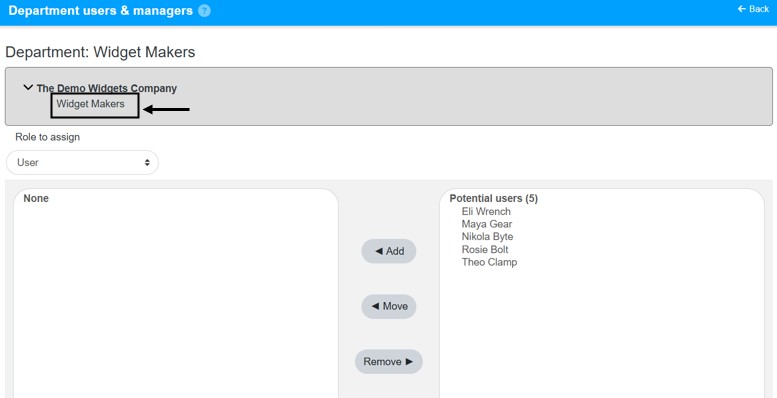
- Select the department you want to update.
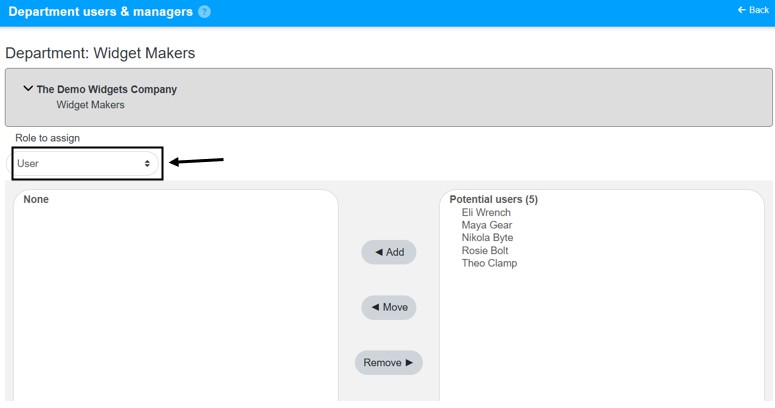
- Select the role you want to assign.
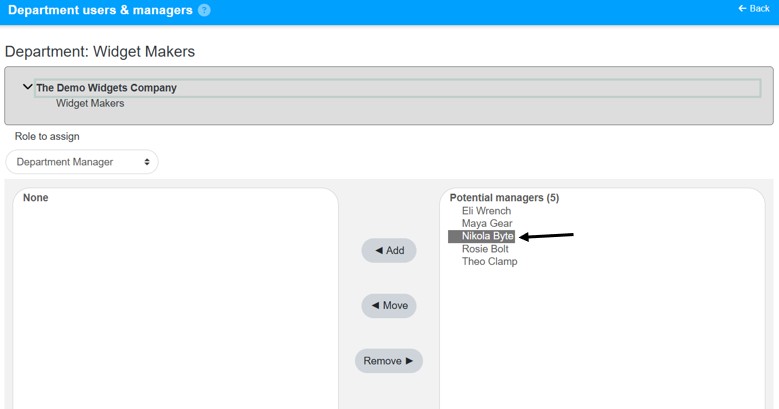
- Select the user(s) you want and Add the users to that department role.
Remove Department Users and Managers Steps
- Navigate to Admin Dashboard.
- Select the Departments Tab.
- Select Department Users & Managers.
- Select the department you want to update.
- Sleect the role.
- Select the user(s) in the Department Manager list and remove them from that position.
Video
*Note: This video reflects a previous version of the platform. Access Admin Dashboard from the left navigation menu. The remaining steps are unchanged.
Result
- The selected users are assigned to the department.
- The selected users are assigned the department role you chose.
Notes / Tips
- Confirm that you selected the correct department before assigning users.
- Use the appropriate role so managers and standard users have the correct access.
Troubleshooting
Common issue: A user does not appear in the assignment list.
Solution: Confirm the user account exists, that the user is in the correct company, and that you are viewing the correct department or role.
Common issue: The assignment does not save.
Solution: Re-select the department and role, check for validation errors, and try the assignment again. If the problem persists, check for network or permission issues.