Add Qualifications to a Framework
Overview
Use this page to add qualifications to an existing framework. This is helpful when you need to define the individual qualifications that will later be used in qualifications plans.
Permissions / Access
Who can perform this action?
- Company Manager
Navigation Path
Admin Dashboard -> Qualifications Tab -> Manage Qualification Frameworks
Steps
- Click on Admin Dashboard in left navigation menu.
- Select the Qualifications tab.
- Select Manage Qualification Frameworks.
- Select the framework you want to update.
- Select the qualification subcategory where you want to add the qualification.
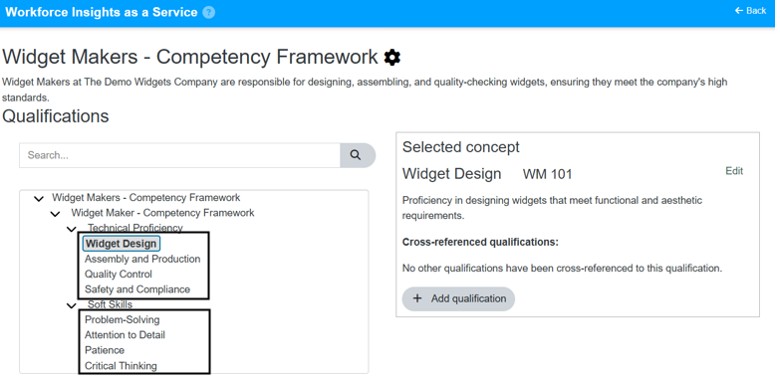
- Select Add New Qualification.
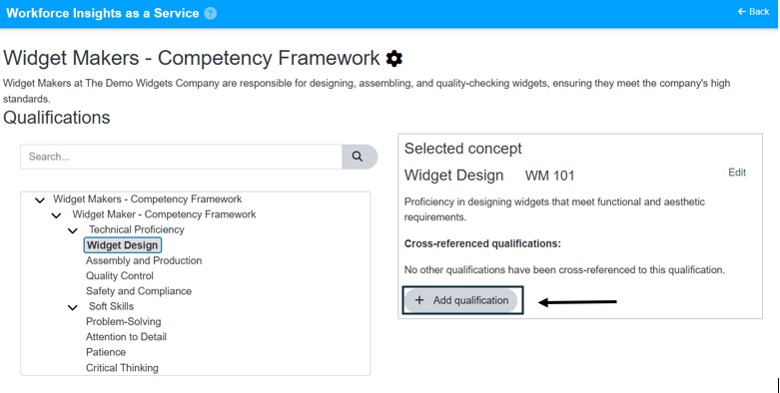
- Enter the required qualification details. -8. Select the option to save the qualification.
Video
*Note: This video reflects a previous version of the platform. Access Admin Dashboard from the left navigation menu. The remaining steps are unchanged.
Result
- The new qualification is added to the selected framework.
- The qualification becomes available for use in plans.
Notes / Tips
- Confirm you are adding the qualification to the correct framework and subcategory.
- Use consistent qualification names so they are easier to find later.
Troubleshooting
Common issue: The qualification is added to the wrong area.
Solution: Select the qualification, go to Edit and select Relocate. Select the Domain you want to move the qualification into.
Common issue: The Add New Qualification option is unavailable.
Solution: Confirm you opened a framework and selected a valid subcategory first.