Assign Qualifications Plan to a User
Overview
Use this page to assign a qualifications plan to one or more users. This is helpful when users need to begin working against a defined set of qualifications.
Permissions / Access
Who can perform this action?
- Department Manager
- Company Manager
Navigation Path
Admin Dashboard -> Qualifications Tab -> Manage Qualification Plans
Steps
- Click on Admin Dashboard in left navigation menu.
- Select the Qualifications tab.
- Select Manage Qualification Plans.
- Select Assign this plan.
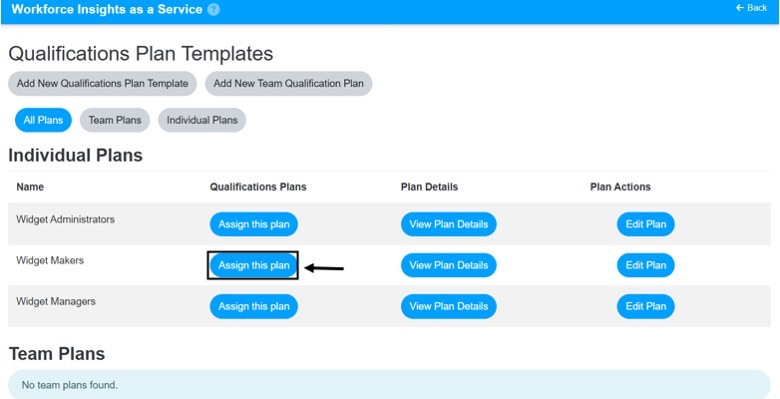
- Select the user or users you want to update.
- Select Assign Qualifications Plan.
Video
*Note: This video reflects a previous version of the platform. Access Admin Dashboard from the left navigation menu. In addition, you can now assign users to a Team Plan. The remaining steps are unchanged.
Result
- The selected users are assigned to the qualifications plan.
- The plan becomes available for qualifications tracking on those users.
Notes / Tips
- You can assign the same plan to more than one user at the same time if the interface allows multi-selection.
- Confirm the selected plan is the correct one before assigning it.
Troubleshooting
Common issue: A user does not appear in the selection list.
Solution: Confirm the user account is active and available for plan assignment.
Common issue: The wrong plan was assigned.
Solution: Use the Change User Plans page to update the user assignment.