Change User Plan
Overview
Use this page to change or replace an assigned qualification plan for a user. This is helpful when a user's role or responsibilities change, when a different plan should be set as primary, or to correct an incorrect assignment.
Permissions / Access
Who can perform this action?
- Department Manager
- Company Manager
Navigation Path
Admin Dashboard -> Qualifications Tab -> Change User Plans
Steps
Change User Plan
- Click on Admin Dashboard in left navigation menu.
- Select the Qualifications tab.
- Select Change User Plans.
- Select the user whose assigned plan you want to change.
- If applicable, click "Assign Learning Plans" to add a new plan to the user.
- If the user already has multiple assigned plans and you want a different plan to be their main one, select the desired plan and choose "Assign as primary user plan" to make it the user's Primary qualification plan.
- Confirm or save your changes and verify the user's assigned plan reflects the update.
Remove User Plan
- Click on Admin Dashboard in left navigation menu.
- Select the Qualifications tab.
- Select Change User Plans.
- Select the user whose assigned plan you want to remove.
- Click Remove Plan to the right of the plan.
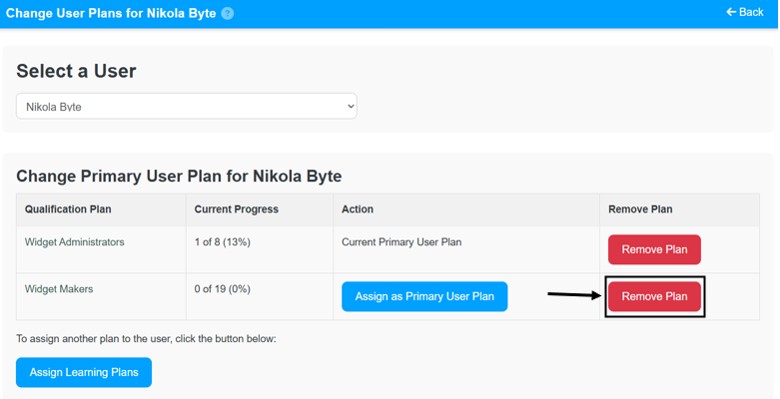
- Click OK on the pop-up message.
- The plan is successfully removed.
Video
*Note: This video reflects a previous version of the platform. Access Admin Dashboard from the left navigation menu. The remaining steps are unchanged.
Result
- The user's assigned plans are updated.
- The correct plan is set as the user's primary plan when applicable.
- The selected plan is deleted when applicable.
Notes / Tips
- Update the primary plan when the user should track progress against a different main plan.
- Remove the plan if you feel like it is no longer applicable to the user.
Troubleshooting
Common issue: The user does not appear in the list.
Solution: Confirm the user account is active and available in the qualifications area.
Common issue: The plan change does not save.
Solution: Re-select the user, make the change again, and confirm the update completed.