Create a Qualifications Plan
Overview
Use this page to create a new qualifications plan. This is helpful when you need a reusable plan template that groups the qualifications required for a role or process.
Permissions / Access
Who can perform this action?
- Company Manager
Navigation Path
Admin Dashboard -> Qualifications Tab -> Manage Qualification Plans
Steps
Add New Qualifications Plan Template
- Click on Admin Dashboard in left navigation menu.
- Select the Qualifications tab.
- Select Manage Qualification Plans.
- Select Add New Qualifications Plan Template.
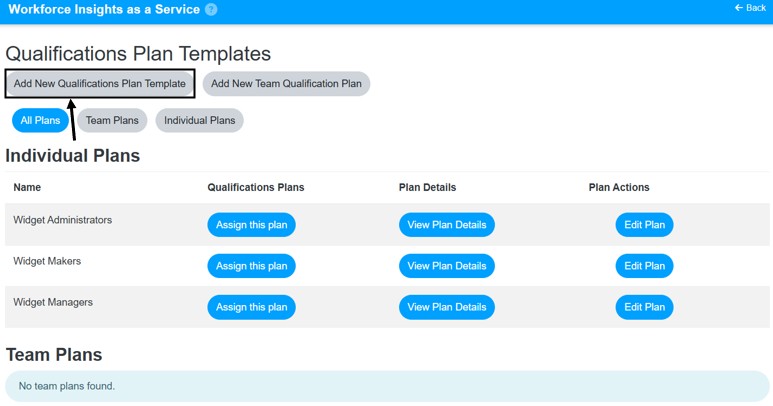
- Enter the required plan details.
- Select Save Changes.
Add New Team Qualification Plan
- Click on Admin Dashboard in left navigation menu.
- Select the Qualifications tab.
- Select Manage Qualification Plans.
- Select Add New Team Qualification Plan
- Enter the required plan details.
- Select Save Changes.
Video
*Note: This video reflects a previous version of the platform. Access Admin Dashboard from the left navigation menu. The Add New Qualifications Template button is still available in the current version. You may also notice new buttons related to individual and team plans. The remaining steps are unchanged.
Result
- A new qualifications plan is created.
- The plan is available for qualification assignment and user assignment tasks.
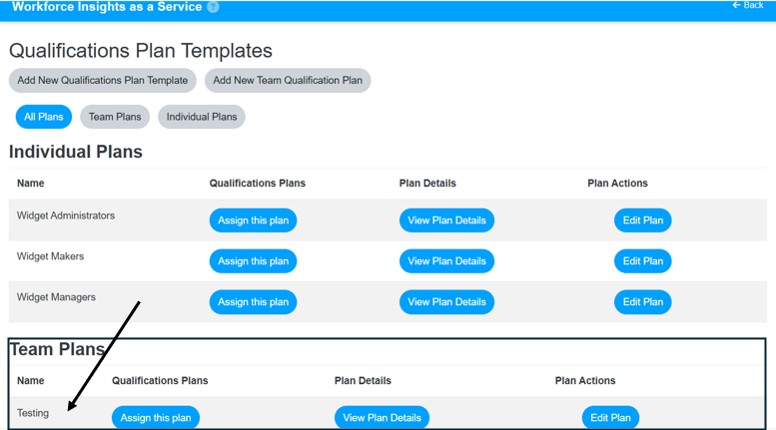
- If you chose to do Team Qualification Plan, your team plan will be listed on the Manage Qualifcations Plans page under Team Plans.
Notes / Tips
- Create the plan before assigning it to users.
- Use clear plan names so managers can easily identify the correct plan.
- Add required qualifications to the plan before assigning it to avoid rework.
- You have to create teams before you can assign users to the Team Qualification Plan.
Troubleshooting
Common issue: The new plan does not appear after saving.
Solution: Refresh the page and confirm the save completed successfully.
Common issue: You cannot create a plan.
Solution: Confirm your role has company-level qualifications plan access.