Add a Content Page
Overview
Add a content page to a lesson so users can view lesson content as part of the training flow. Content pages are used to include information and resources directly inside a lesson.
Permissions / Access
- Company Manager
Navigation Path
Training Dashboard -> [Select Training Module] -> Edit Mode -> [Select Lesson]
Steps
- Click on the Training Dashboard on the left navigation menu.
- Open the training module where the lesson is located.
- Toggle on Edit Mode in the top-right corner.
- Select the lesson you want to update.
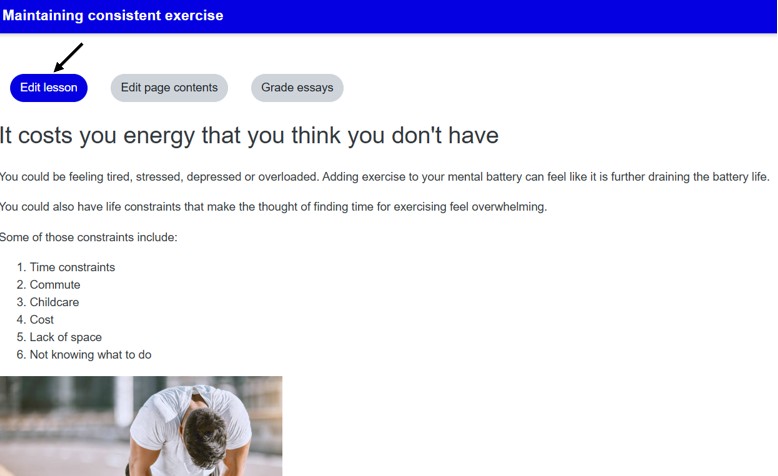
- Click the Edit lesson button.
- In the Actions column, open the drop-down list.
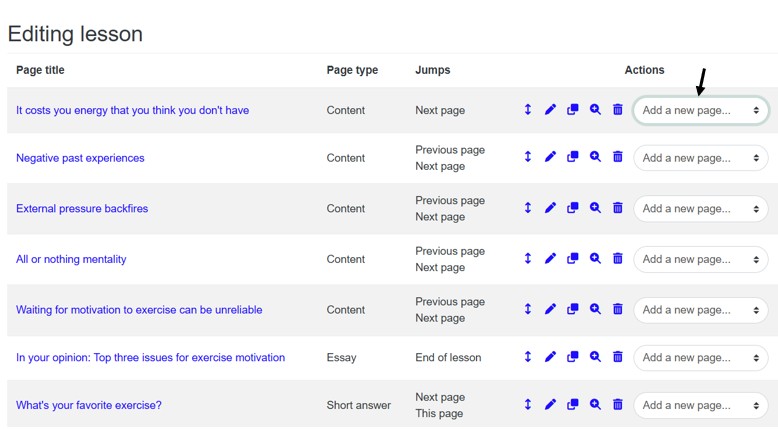
- Select Add a content page.
- Fill out the content page fields.
- Scroll down and select Save page.
Result
- A new content page is added to the lesson.
- Users can view the new page when they work through the lesson.
Notes / Tips
- If you have created a lesson but not added any content yet, click the lesson and select Add a content page.
Troubleshooting
Common issue: The Add a content page option is not visible.
Solution: Make sure Edit Mode is enabled and the lesson is open for editing.