Add a Question Page
Overview
Add a question page to a lesson so learners can complete assessments inside the training flow. Question pages support multiple question types, including Essay, Matching, Multichoice, Numerical, Short Answer, and True/False.
Permissions / Access
- Company Manager
Navigation Path
Training Dashboard -> [Select Training Module] -> Edit Mode -> [Select Lesson]
Steps
- Click on the Training Dashboard on the left navigation menu.
- Open the training module where the lesson is located..
- Toggle on Edit Mode in the top-right corner.
- Select the lesson you want to update.
- Click the Edit lesson button.
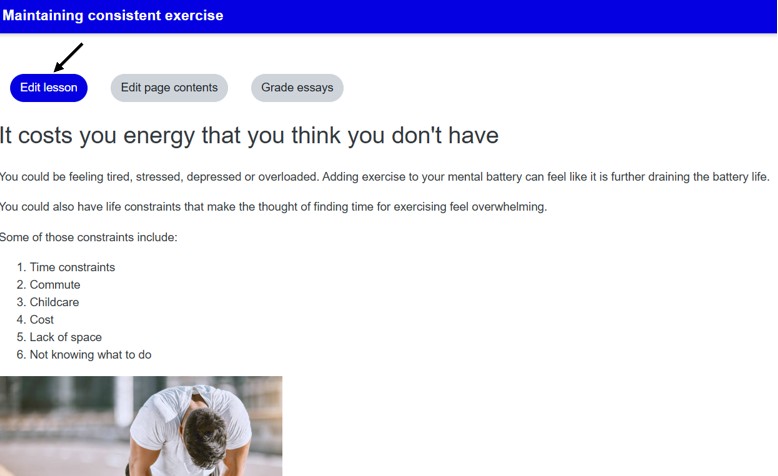
- In the Actions column, open the drop-down list.
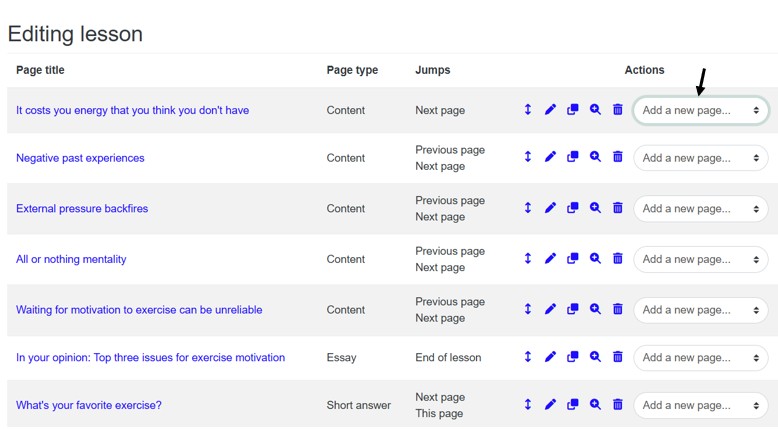
- Select Add a question page.
- Choose the question type you want to add.
- Click the Add a question page button.
- Fill out the Page title, Page contents, and any question-specific fields.
- Select the appropriate next course of action (through Jump).
- Adjust the score if needed.
- Click Save page.
Result
- A new question page is added to the lesson.
- Learners can complete the question as part of the lesson.
- The lesson continues according to the next course of action you selected.
Notes / Tips
- Use the same question type multiple times in a lesson if you need repeated assessments.
- If you are unsure which type to use, choose the one that best matches the response format you need.
- The question page appears in the lesson sequence once it has been saved.
Troubleshooting
Common issue: The Add a question page option is not visible.
Solution: Make sure Edit Mode is enabled and the lesson is open for editing.
Common issue: The question page was saved but still does not appear in the lesson.
Solution: Refresh the lesson page and verify that the lesson content is in Edit Mode.