Bulk Upload Users
Overview
Upload multiple user accounts at once using a bulk file import. This makes it faster to add large groups of users and keeps the account creation process consistent.
Permissions / Access
- Department Manager
- Company Manager
Navigation Path
Admin Dashboard -> Users -> Upload Users
Steps
- Open Admin Dashboard.
- Select the Users tab.
- Select Upload Users.
- Click Choose File or drag the file into the upload area.
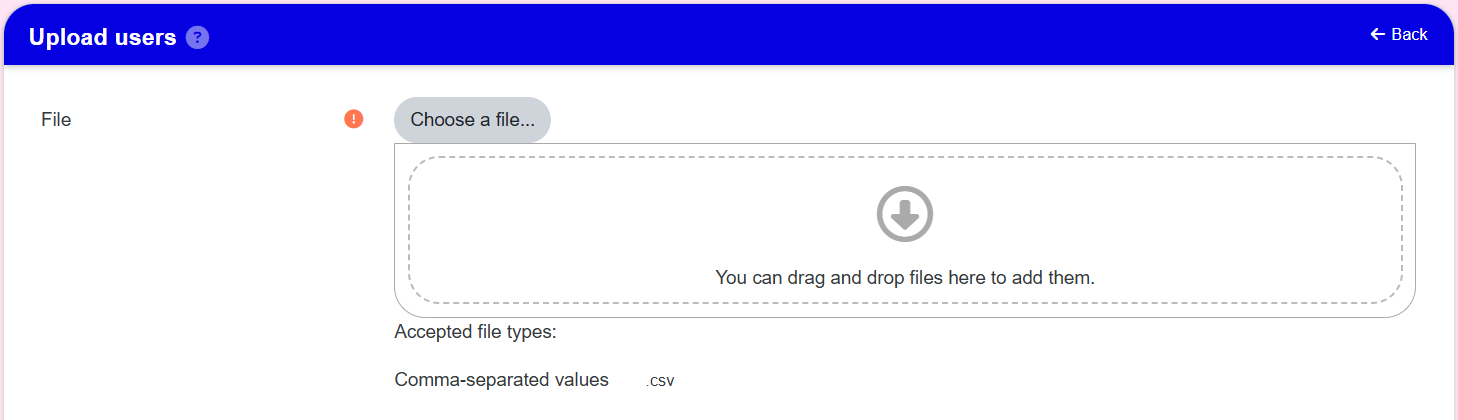
- Locate and select the correct upload file, then choose Open.
- Select Upload this file.
- Scroll down and select Upload Users to start the import.
Formatting Guide for Bulk User Upload

Result
- The upload file is processed.
- User accounts are created from the file contents.
- You receive confirmation that the upload completed.
Notes / Tips
- Ensure the file uses the correct format and contains no blank rows.
- Confirm the company name in the file exactly matches your company.
- Verify all password values meet the platform password policy.
- Use bulk upload only for authorized user management.
Troubleshooting
Common issue: File upload fails.
Solution: Verify the file format and remove blank rows.
Common issue: Users are not created.
Solution: Check the import file for missing required fields and retry.