Create a User
Overview
Create a new user account in the platform so a person can access training modules, complete qualifications, and receive notifications. Use this when you need to add a new employee or learner to the system.
Permissions / Access
- Department Manager
- Company Manager
Navigation Path
Admin Dashboard -> Users -> Create User
Steps
- Open Admin Dashboard.
- Select the Users tab.
- Select Create User.
- Enter the user's required details, such as name, email address, role, and department.
- Scroll to the bottom and select Submit and create another user or Submit and back to Admin Dashboard.
Result
- A new user is created in the system.
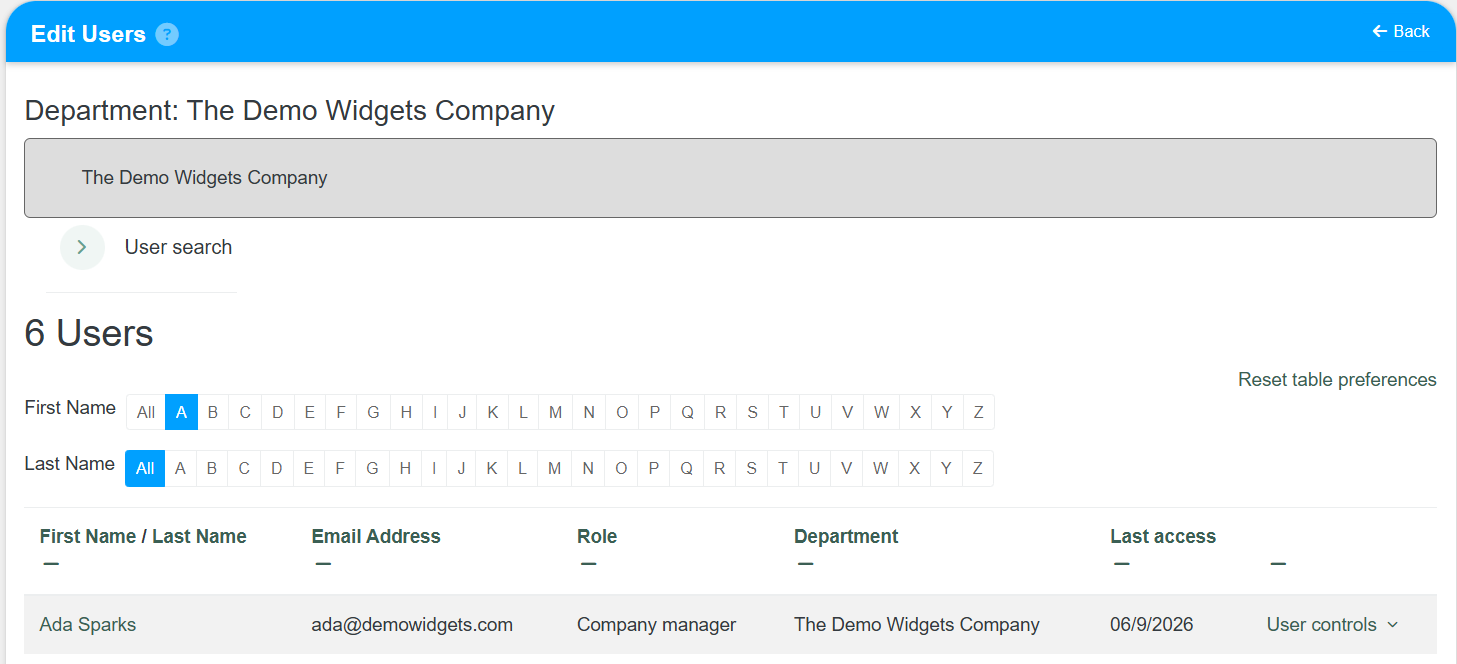
- The new user appears in the user list.
- You return to the Admin Dashboard or continue creating another user, depending on the option selected.
Notes / Tips
- Confirm the email address is correct before submitting.
- If you choose Submit and create another user, the form remains open for the next entry.
- Use Submit and back to Admin Dashboard to return to the main user overview.
Troubleshooting
Common issue: The user does not appear in the list.
Solution: Refresh the Users tab and confirm the new user was saved.
Common issue: Required field is missing.
Solution: Complete all highlighted fields before submitting.