Manage Users
Watch the walkthrough below, then follow the written steps.
Overview
View all user accounts in your company to review account status, verify user information, and locate specific users for editing or management.
Permissions / Access
- Department Manager
- Company Manager
Navigation Path
Admin Dashboard -> Users -> Manage Users
Steps
- Open Admin Dashboard.
- Select the Qualifications tab.
- Select Manage Users.
- Review all user accounts in your company.
Result
- The user list appears showing all active accounts.
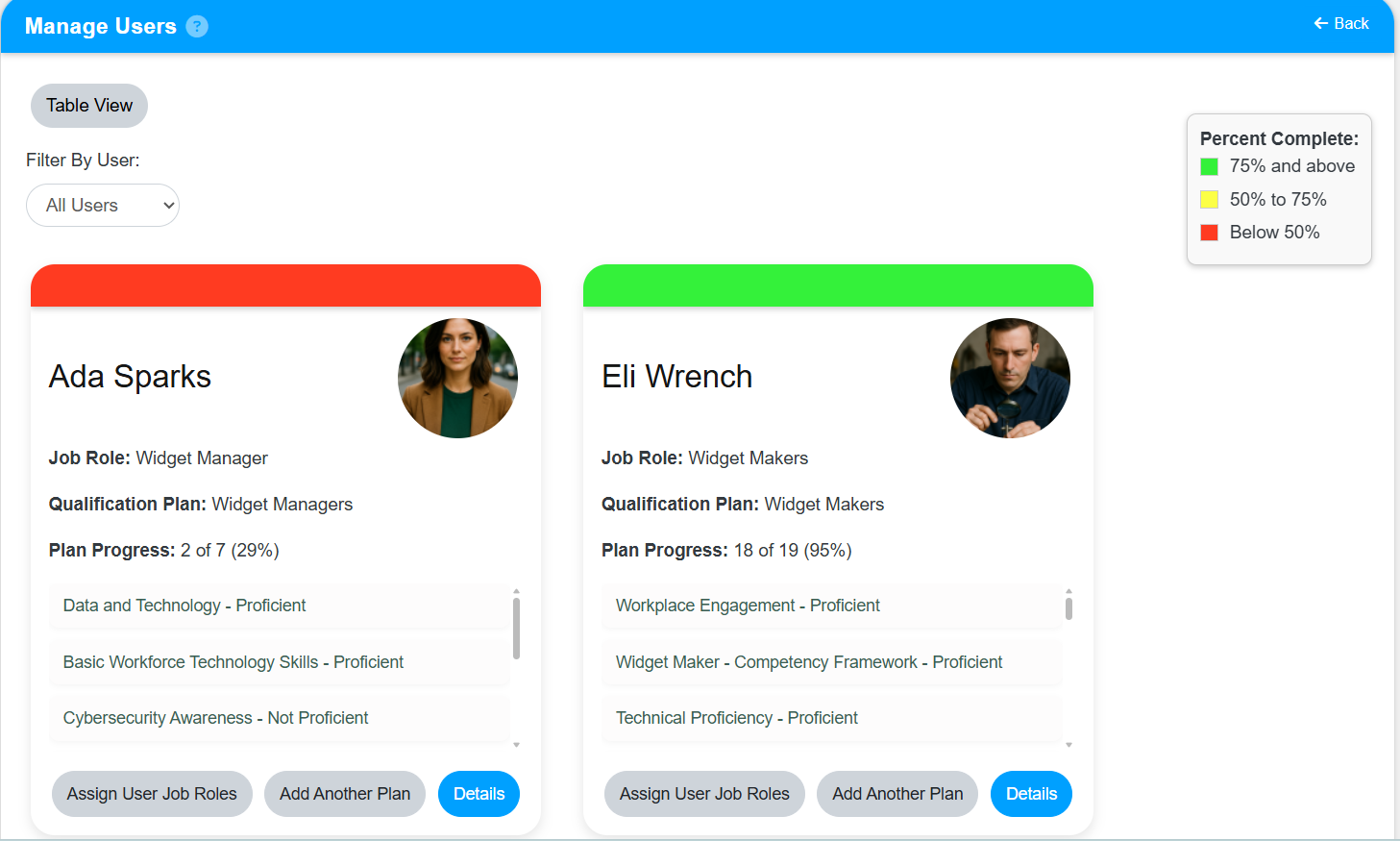
- You can review and search user information.
- From this view, you can select users to edit or manage their accounts.
Notes / Tips
- Use search or filter options to find specific users quickly.
- Check the user list regularly to ensure account status is current.
- Suspended users may be hidden until you enable the filter to show them.
Troubleshooting
Common issue: Users in the list do not match expected values.
Solution: Verify the filters and search criteria are set correctly.
Common issue: A specific user is not visible.
Solution: Check if the user is suspended or if the search is filtering them out.